
Agent workflows
What makes OpenClaw different?
From a single AI answer to a connected workflow you can run, review and control.
 By Glen Harvey
A new inquiry arrives while you are busy helping a client. Someone still needs to research the company, prepare a proposal and remember the follow-up. AI can help write each piece. The bigger opportunity is connecting those pieces into a workflow you can trust.
An answer is one step. A workflow joins the steps.
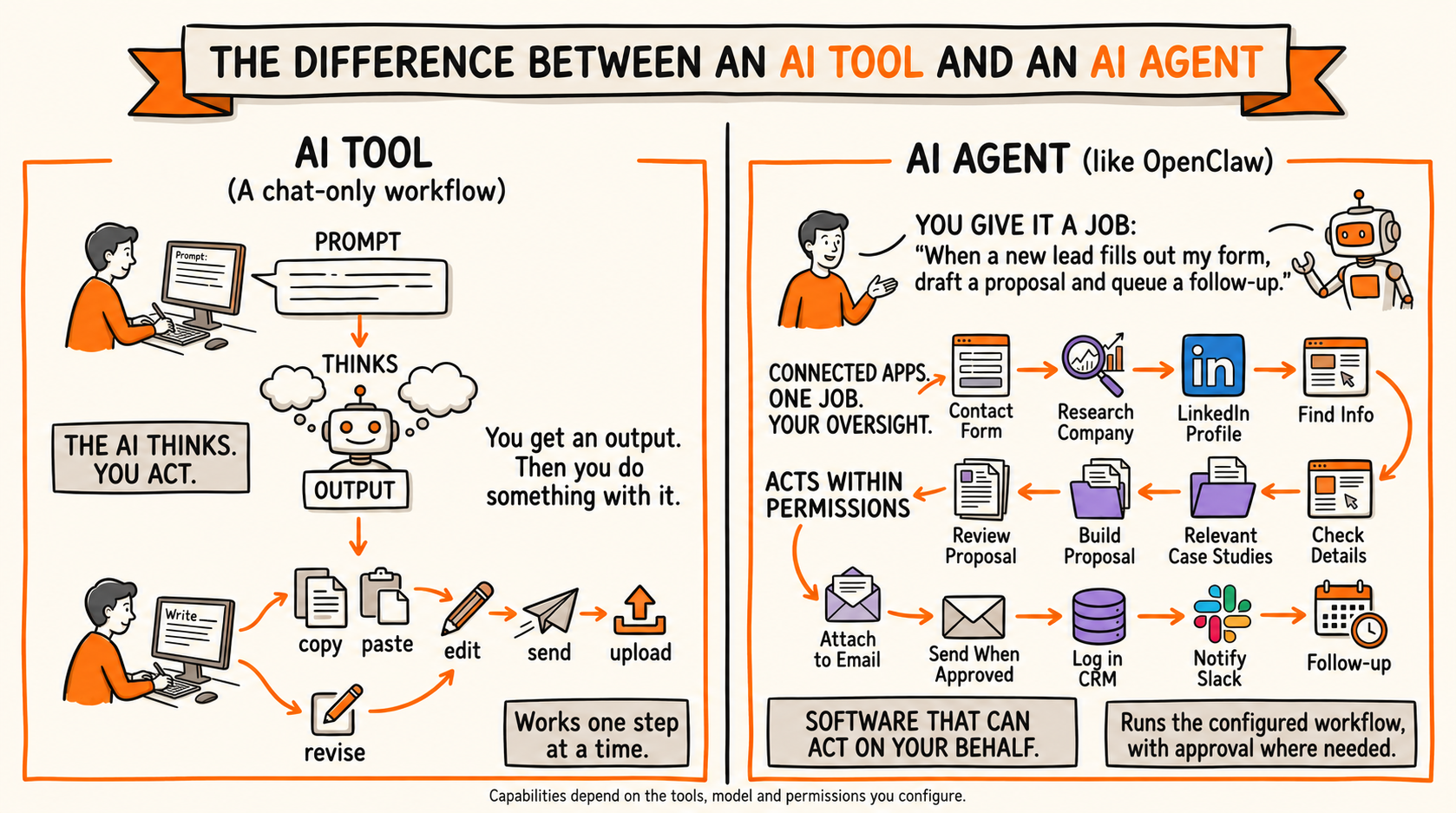
In a chat-only workflow, you ask a question, receive an answer, then copy, edit, send or upload it yourself. An agent can use connected tools to continue the job. OpenClaw is one way to build that arrangement: you run its gateway on a computer or server, connect a model and choose the services it may use. Other AI products also offer agent features; the illustration explains two ways of working rather than a permanent divide between brands.
Read the full workflow as text
A typical chat-only workflow
Prompt → thinks → output. You connect the next steps: copy, paste, edit, send, upload or revise.
An agent workflow
Contact form → Research company → Public LinkedIn profile → Find needs → Find supporting info → Select case studies → Build proposal → Attach to draft → Review & approve → Send email → Log in CRM → Notify Slack → Schedule follow-up
Illustrative workflow: integrations, access and approval rules must be configured. ChatGPT, Claude and Gemini also offer agentic features; this compares workflow styles, not fixed product limits.
Follow a lead from inquiry to follow-up
The example starts with a contact form. The agent researches the company using accessible sources, checks relevant public profile information, gathers the client's needs and finds supporting information. It selects suitable case studies, builds a proposal and attaches it to a draft. After your review and approval, the workflow can send the email, log the activity in your CRM, notify the team in Slack and schedule a follow-up. Each connection needs setup; a diagram is not proof that the workflow is already installed.
What runs behind the scenes?
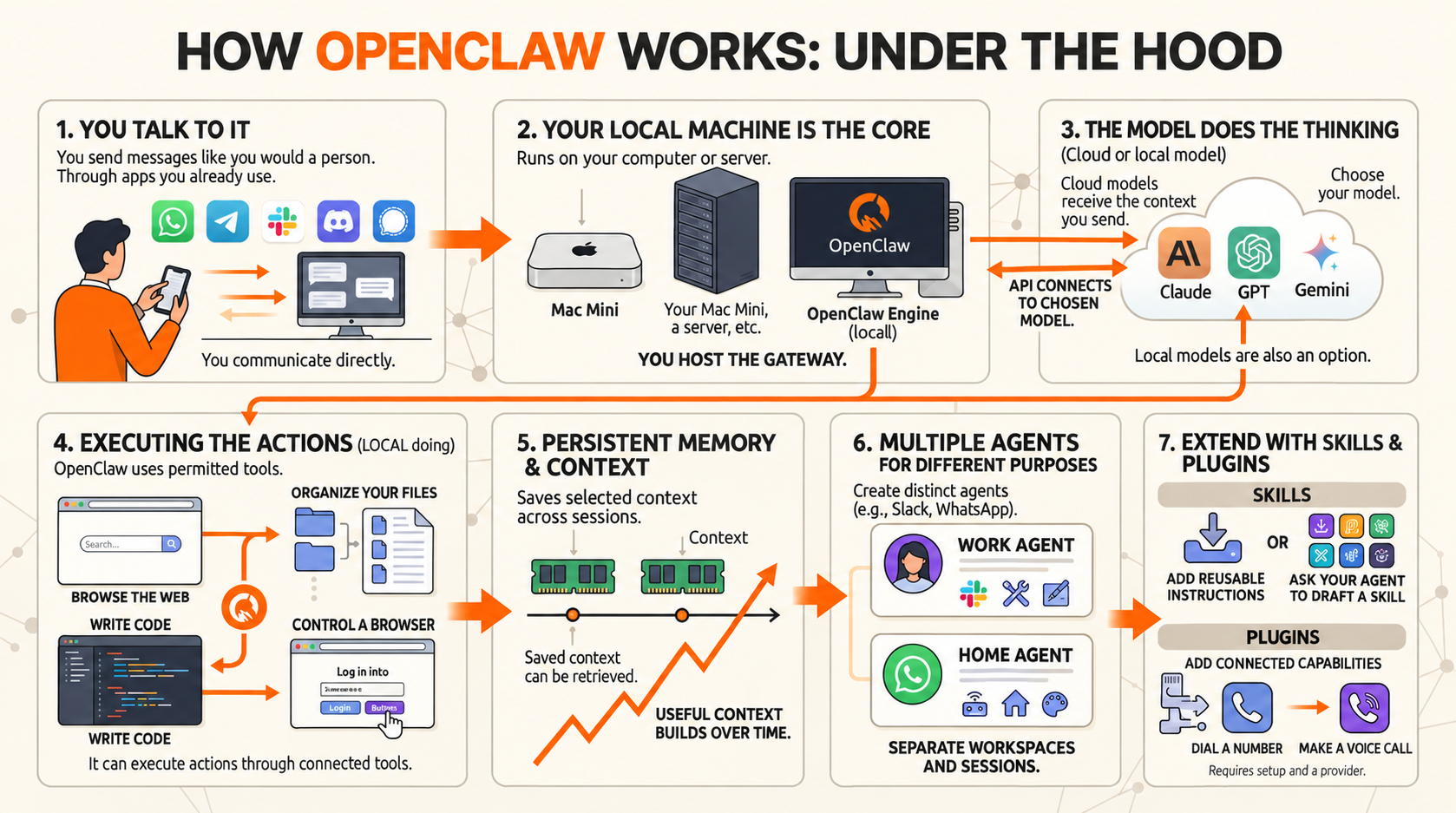
Seven parts work together: a familiar messaging app; your computer or server running the gateway; a cloud or local model; tools that browse, organize files, write code or control a browser; saved memory; agents for different purposes; and skills or plugins that add procedures and integrations. A voice-call plugin, for example, also needs a calling provider. The model reasons, while enabled tools perform actions within the permissions you set.
Read all seven panels as text
- YOU TALK TO IT
Send a message through a connected chat app you already use. WhatsApp; Telegram; Slack; Discord; Signal. Text, or supported voice messages.
- YOUR MACHINE RUNS THE GATEWAY
Run OpenClaw on your computer or a server you control. Mac mini; Computer or server; OpenClaw Gateway. Local control. Cloud connections may send data out.
- THE MODEL DOES THE REASONING
Connect a compatible cloud or local model. Claude; GPT; Gemini; or a local model; API connection. Provider and hardware requirements vary.
- TOOLS EXECUTE THE ACTIONS
OpenClaw can use tools to carry out the task. Browse the web; Organize files; Write code; Control a browser. Actions depend on enabled tools and permissions.
- PERSISTENT MEMORY & CONTEXT
Saved notes can carry useful context across sessions. Saved notes; Retrieved context. Better context can help. Recall is not perfect.
- AGENTS FOR DIFFERENT PURPOSES
Create separate agents and route messages to them. WORK AGENT; HOME AGENT. Separate workspaces and sessions when configured.
- EXTEND WITH SKILLS & PLUGINS
Add procedures and integrations for new tasks. SKILLS; Use reviewed community skills; Or create your own; PLUGINS; Connect services and tools; Voice-call integration. Review additions. Calls need a configured provider.
Control comes with responsibility
Running the gateway yourself gives you more control over its environment. It does not automatically keep everything on your machine: cloud models, messaging apps and connected services may receive relevant information. Saved notes help carry context forward, but do not guarantee perfect recall. Background work needs an available host and configured triggers. Someone still owns updates, access and checking the results.
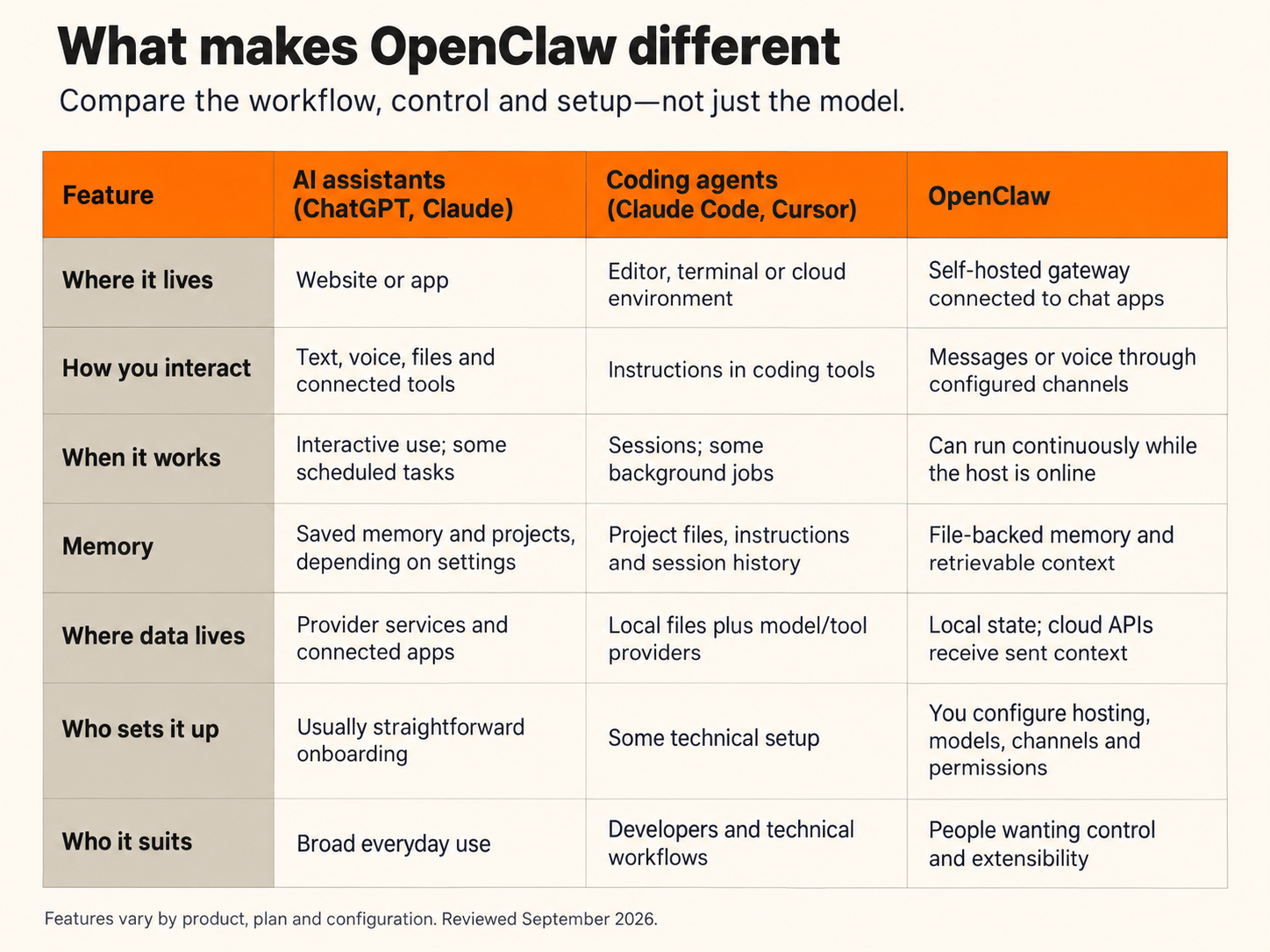
| Feature | General AI assistants | Coding agents | OpenClaw |
|---|---|---|---|
| Where it lives | Usually a web, desktop or mobile app | Editor, terminal, desktop or cloud | A self-hosted gateway with connected chat apps |
| How you interact | Chat, voice, files and available tools | Describe tasks; review code and actions | Message a connected app or use its dashboard |
| When it works | Interactive; some offer scheduled or background tasks | Interactive or background, depending on product | Can run scheduled or triggered work while its host is online |
| Memory | Saved memory and project context vary | Project instructions and persistent memory vary | Saved notes and session context; recall depends on what is stored and retrieved |
| Where data goes | Depends on provider, plan and tools | Local and/or cloud, depending on setup | Gateway state can be local; cloud models and services receive relevant data |
| Who sets it up | Usually guided account setup | Some technical configuration | You or your technical partner manage hosting, connections and permissions |
| Who it suits | A broad range of everyday users | People building and maintaining software | People and teams wanting control of a configurable assistant |
OpenClaw's distinction is the combination of self-hosting, chat connections, model choice and configurable actions—not exclusive ownership of memory or automation.
Start with one useful handoff
My recommendation is to begin with inquiry-to-proposal preparation, keeping approval before client messages go out. Define the trigger, the required information, the finished result and the point where a person checks it. Measure whether the process saves time and improves consistency before expanding it.
Five practical workflows
Start with work that repeatedly gets delayed. These examples show what an agent could prepare; you choose the decisions it may make.
1. Keep a consultant's marketing moving
When client delivery fills the week, an agent could gather approved case studies, flag outdated service descriptions and prepare website updates, social drafts and lead reminders. You receive a short queue of decisions instead of scattered unfinished jobs. Review the claims and approve anything that goes to a client or the public.
2. Turn a side project into a small test
Give an agent a clearly defined idea and research boundaries. It could compare competing offers, organize audience questions, draft a landing page and support answers, and assemble a launch checklist. You choose the offer and approve spending or publication. Use real feedback to decide whether the next version deserves more work.
3. Unblock a growing team's coordination
An agent could review incoming inquiries, prepare replies, update approved internal records and turn meeting notes into assigned actions. It can collect unfinished campaign tasks and flag decisions waiting on someone. Keep pricing, customer commitments and external messages under your control. The aim is fewer missed handoffs, not guaranteed sales.
4. Bring scattered information together
A small organization could use an agent to sort approved documents, match them to a project or budget, prepare payment-queue entries and route unanswered questions to staff. It could consult internal guidance before drafting routine answers. Define data access carefully; staff retain payment approval and decisions requiring professional judgment.
5. Give finished content a distribution plan
From an approved article or recording, an agent could prepare channel-specific excerpts, newsletter copy, visual concepts and a publishing calendar. It could collect performance figures and suggest a follow-up topic. You review the wording and decide what gets published or answered. One finished piece becomes a manageable set of next steps.
These are illustrative possibilities. Each workflow requires suitable connections, permissions, testing and a running host. They are not claims of an installed service or guaranteed results.
Watch the flow, one step at a time
An eight-minute narrated walkthrough. Pause whenever you want to follow a step. The full explanation is also available on this page in text and illustrations.
Have a repetitive workflow? Talk to Computer Assist about where AI can help.
Explore AI workflowsTechnical references
Original illustrations and explanation by Glen Harvey. Product details checked against these references on 15 September 2026.