 AI & AUTOMATION

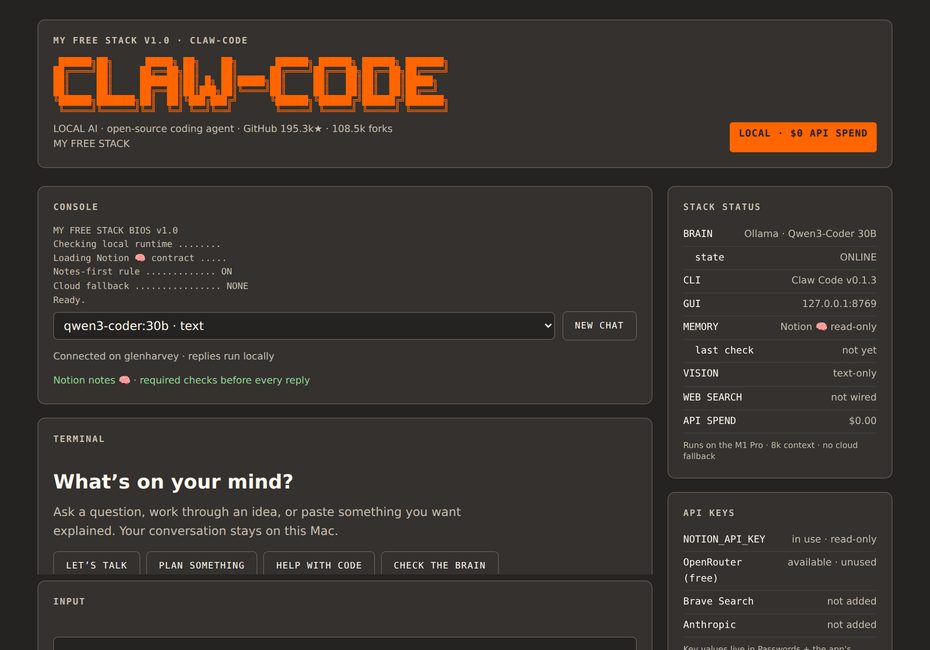
Claw Code is the community-built, open-source rewrite of Anthropic’s Claude Code. My Free Stack is my setup around it: a private chat window that runs on your own computer, thinks locally and checks your notes first.
Where it came from. On 31 March 2026 Anthropic accidentally published about 500,000 lines of its own Claude Code source code (reported by Axios).
Runs on my Mac
The chat lives at a local address that only I can open. The model runs on my machine, not on someone else's server.
$0 per message
Qwen3-Coder runs through Ollama, so everyday use costs nothing. Paid services stay off unless I choose them.
Knows my business
It reads my business notes in Notion before answering, and names the pages it used. Read-only, so it can't change anything.
From a blank Mac to a private AI in an afternoon.
Every step has the Mac instructions first, then a grey box with the Windows version. No coding experience needed for steps 1 to 3.
- 01
Install Ollama and the model
Ollama is a free app that runs AI models on your own computer. Think of it as the engine. You only do this once. The model I use is about 19 GB, so make sure you have the disk space and a good internet connection.
aGo to ollama.com, download the Mac app, open it and drag it into Applications. Launch it once. A small llama icon appears at the top of your screen.bOpen Terminal (press Cmd + Space, type Terminal, press Enter). It is just a window where you type instructions.cCopy this line into Terminal and press Enter. It downloads the AI model. This can take a while.ollama pull qwen3-coder:30b
dCheck it worked:ollama list
ON WINDOWSaGo to ollama.com, download Ollama for Windows, and run the installer. Follow the prompts.bOpen PowerShell: click the Start button, type PowerShell, press Enter. It is the Windows version of Terminal.cDownload the AI model. This can take a while:ollama pull qwen3-coder:30b
dCheck it worked:ollama list
You should see: qwen3-coder:30b listed. Ollama runs quietly in the background, so you do not need to do anything else. - 02
Install Claw Code
Claw Code is the open-source program that does the thinking work. It is written in a language called Rust, so we install Rust first, then build Claw Code from its GitHub page. The build takes a few minutes the first time.
aGo to rustup.rs. It shows one line of text to paste into Terminal. Paste it, press Enter, then choose option 1 (the default). When it finishes, close Terminal and open it again.bDownload Claw Code. If your Mac asks to install developer tools, click Install and wait, then run the line again.git clone https://github.com/ultraworkers/claw-code
cGo into the folder and build it. This is the slow part, so let it run.cd claw-code/rust cargo build --workspace
dRun the built-in health check:./target/debug/claw doctor
ON WINDOWSaGo to rustup.rs and download the Windows installer (rustup-init.exe). Run it and choose the default option. If it asks you to install Microsoft's C++ build tools, say yes, because Rust needs them on Windows. When it finishes, close PowerShell and open it again.bInstall Git for Windows from git-scm.com if this line does not show a version number:git --version
cDownload and build Claw Code. The build is the slow part:git clone https://github.com/ultraworkers/claw-code cd claw-code\rust cargo build --workspace
dRun the health check. Windows needs the .exe ending and backslashes:.\target\debug\claw.exe doctor
Only ever build from the repo. The repo warns that cargo install claw-code installs the wrong thing.
You should see: a checklist of what is working. If something is missing, it tells you what to fix. - 03
Point it at my local model
By default, tools like this call a paid service over the internet. One setting tells Claw Code to talk to Ollama on your own Mac instead, so it costs nothing and nothing leaves your computer.
aTell Claw Code where Ollama is. This lasts for the current Terminal window.export OLLAMA_HOST="http://127.0.0.1:11434"
bAsk it a simple question to test:./target/debug/claw --model "qwen3-coder:30b" prompt "say hello"
ON WINDOWSaTell Claw Code where Ollama is. This lasts for the current PowerShell window:$env:OLLAMA_HOST = "http://127.0.0.1:11434"
bAsk it a simple question to test:.\target\debug\claw.exe --model "qwen3-coder:30b" prompt "say hello"
You should see: a short reply from the AI. The first answer can be slow while the model wakes up. No account or key was needed. - 04
Add a simple chat window
Typing in Terminal is fine for me but not for everyone, so I made a friendly chat page. This part is my own addition and is optional, because steps 1 to 3 already work. It is two small files: a Python program (about 180 lines) and one web page.
aWhat the two files do. The Python program opens a private web page and passes each message you type to Ollama, which is listening on your Mac at 127.0.0.1:11434. It then shows the reply word by word. The web page is just the look: the message box, the buttons and the status panel.bMake your own. The easiest way is to ask an AI assistant to write both files for you. Copy this request into any AI chat and save what it gives you:Write me a one-folder local chat app for my Mac. 1) server.py: Python 3 standard library only, serves index.html on 127.0.0.1:8769 and sends each message to Ollama at http://127.0.0.1:11434/api/chat with model qwen3-coder:30b, streaming the reply back. 2) index.html: a simple dark chat page with a message box and a Send button. Keep everything on my computer. Explain how to run it.
cSave the files. Make a new folder, for example MyFreeStack inside Documents, and put server.py and index.html in it.dStart it. In Terminal, go to the folder and run the program. Python 3 is already on most Macs. If the Mac asks to install developer tools, click Install.cd ~/Documents/MyFreeStack python3 server.py
eOpen the chat. In your browser, go to http://127.0.0.1:8769. The number 127.0.0.1 means this computer only, so nobody else on the internet can open it. Leave the Terminal window open while you chat.ON WINDOWSaInstall Python 3 from python.org. On the first screen of the installer, tick Add python.exe to PATH.bWhen you ask an AI to write your two files (server.py and index.html), add: "I am on Windows."cSave both files in a folder called MyFreeStack inside Documents.dStart it from PowerShell, then open http://127.0.0.1:8769 in your browser:cd $HOME\Documents\MyFreeStack python server.py
You should see: a chat window in your browser. Type a message and the reply appears as the AI writes it. Mine also has a status panel showing the local model is online. - 05
Connect my notes, read-only
Also optional. Before it answers, the chat window looks up my own Notion notes so its answers fit my business. It names every page it used so I can check it.
aMake a Notion connection. In Notion, go to notion.so/profile/integrations and click New integration. Give it a name like "My Free Stack". Under Capabilities, tick Read content only and leave every write option off. That is what makes it read-only.bCopy its secret key. Notion shows a long secret code for the connection. Treat it like a password. Never paste it into a web page, a chat or a file you share.cChoose what it can see. Open the Notion pages you want it to know about, click the three dots, choose Connections, and add your connection. It can only read pages you share with it.dGive the key to your Mac, not to the code. Save it as a private setting on your Mac (an environment variable) so it never sits inside the files. Replace the text in quotes with your own key:export NOTION_API_KEY="paste-your-key-here"
eAdd the lookup. A small extra Python file asks Notion to search your pages, reads the best matches, and hands the text to the chat program before each answer. Ask an AI assistant to write it with this request:Write brain.py for my local chat app. It reads NOTION_API_KEY from the environment and only uses Notion's read endpoints: POST /v1/search and GET /v1/blocks/{id}/children. Before each chat message, search my pages for the key words, return short excerpts and a list of page titles and links. server.py should put the excerpts in front of the model's prompt and show the page links under the answer. Never write to Notion.ON WINDOWSaSteps a to c above are the same on Windows: make the read-only Notion connection, copy its key, and share your pages with it.bGive the key to your PC, not to the code. This sets it for the current window:$env:NOTION_API_KEY = "paste-your-key-here"
cTo keep it for good, save it once, then close and reopen PowerShell:setx NOTION_API_KEY "paste-your-key-here"
dAsk the AI for the lookup file (brain.py) with the same request, and say you are on Windows.You should see: your answer with a short list of Notion pages under it. If it says no pages were found, check that you shared those pages with the connection in step c. - 06
Make it start on its own
Without this, I would have to start everything by hand every time I turn on the Mac. Two things start quietly in the background when I sign in, and the Mac restarts the chat program if it ever stops.
aWhat has to be running. Two things must be awake before you can chat. First, Ollama, the engine that holds the AI model. Second, the chat program (server.py), which shows the chat page and passes your messages to Ollama. Claw Code itself only runs when you use it in Terminal, so it does not need starting.bWhat "in the background" means. Neither one opens a window. They run quietly out of sight, like your Mac's own helper programs, and wait until you open the chat page. You only notice them when you use them. If the chat program stops for any reason, the Mac starts it again by itself.cStart Ollama at login. Click the llama icon at the top of your screen, choose Settings, and turn on Launch at login.dPut the chat program somewhere the Mac allows. macOS blocks background programs from reading your Documents folder, so keep a copy in a spot it allows:mkdir -p ~/Library/Application\ Support/MyFreeStack cp server.py index.html ~/Library/Application\ Support/MyFreeStack/
eWrite the startup file. This tells the Mac what to launch at login. Save it as ~/Library/LaunchAgents/my.free.stack.plist and change YOURNAME to your Mac user name. RunAtLoad means start when I sign in. KeepAlive means restart it if it stops.<?xml version="1.0" encoding="UTF-8"?> <plist version="1.0"><dict> <key>Label</key><string>my.free.stack</string> <key>ProgramArguments</key><array> <string>/usr/bin/python3</string> <string>/Users/YOURNAME/Library/Application Support/MyFreeStack/server.py</string> </array> <key>RunAtLoad</key><true/> <key>KeepAlive</key><true/> </dict></plist>
fSwitch it on. This registers the startup file now, so you do not need to log out to test it:launchctl bootstrap gui/$(id -u) ~/Library/LaunchAgents/my.free.stack.plist
gCheck it is running. Because there is no window, ask the Mac. A line that shows my.free.stack means it is alive:launchctl list | grep my.free.stack
hTurn it off if you ever want to.launchctl bootout gui/$(id -u)/my.free.stack
ON WINDOWSaOllama: the Windows installer normally sets Ollama to start when you sign in. Check by restarting and looking for the llama icon in the bottom-right of the taskbar.bMake a startup file. In Notepad, type these two lines and save the file as start-free-stack.bat in your MyFreeStack folder. pythonw runs the chat program with no window:cd /d %USERPROFILE%\Documents\MyFreeStack start "" pythonw server.py
cAdd it to Startup. Press the Windows key + R, type shell:startup and press Enter. Copy a shortcut to your .bat file into the folder that opens. Windows runs everything in it at sign-in.dTest it. Sign out and back in, then open http://127.0.0.1:8769. To check it is running, ask PowerShell. To stop it:Get-Process pythonw Stop-Process -Name pythonw
Unlike the Mac version, Windows will not restart the chat program on its own if it stops. Sign out and in, or double-click the .bat file, to start it again. To remove it from startup, delete the shortcut from the Startup folder.
You should see: after you log out and back in, http://127.0.0.1:8769 opens the chat page with no Terminal window and nothing to start by hand.
Claw Code is an independent open-source project. It is not Claude, and it is not affiliated with, endorsed by, or maintained by Anthropic. The model I run behind it is Qwen3-Coder.
As of 19 September 2026, the Claw Code GitHub page shows over 195.3k stars and 108.5k forks. Those numbers belong to the open-source repository, not to my setup.